Shop Analyzer
Shop Analyzer Overview
Search Etsy shops by name or URL to view sales, revenue, listings, reviews, and competitive insights.
Updated
Find any public Etsy shop and see its sales performance, revenue estimates, active listings, reviews, and similar competing shops — all in one view.
What you can do with Shop Analyzer
Search for shops by name or URL with autocomplete suggestions
View shop performance metrics including monthly and total sales, revenue estimates, and rankings
Browse all active listings with sortable columns for price, sales, reviews, and more
Identify listings that are performing exceptionally well or underperforming relative to their category
See high-rated recent reviews from customers
Discover similar shops operating in the same product categories
Save shops and listings to your personal watchlist for future reference
Export shop data and listings to CSV for deeper analysis
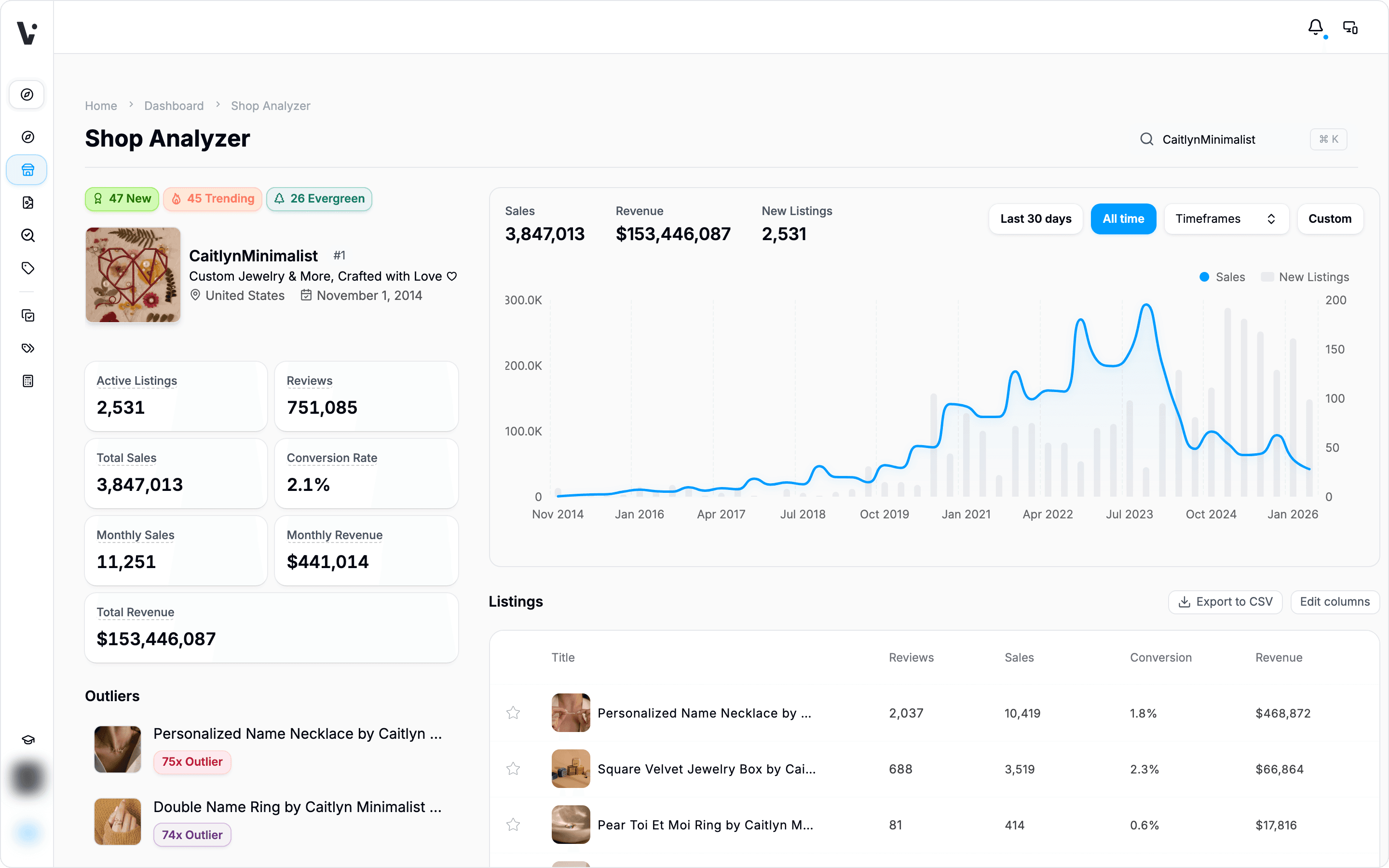
How to use Shop Analyzer
Navigate to Shop Analyzer — Open the Shop Analyzer tool from the main menu.
Search for a shop — Enter a shop name or Etsy URL in the search box. After you pause typing (one second of no new characters), autocomplete suggestions appear to help you find the exact shop.

Wait for results to load — A progress bar appears while your shop data syncs. Partial results stream in as they become available, so you can start viewing information before everything completes.
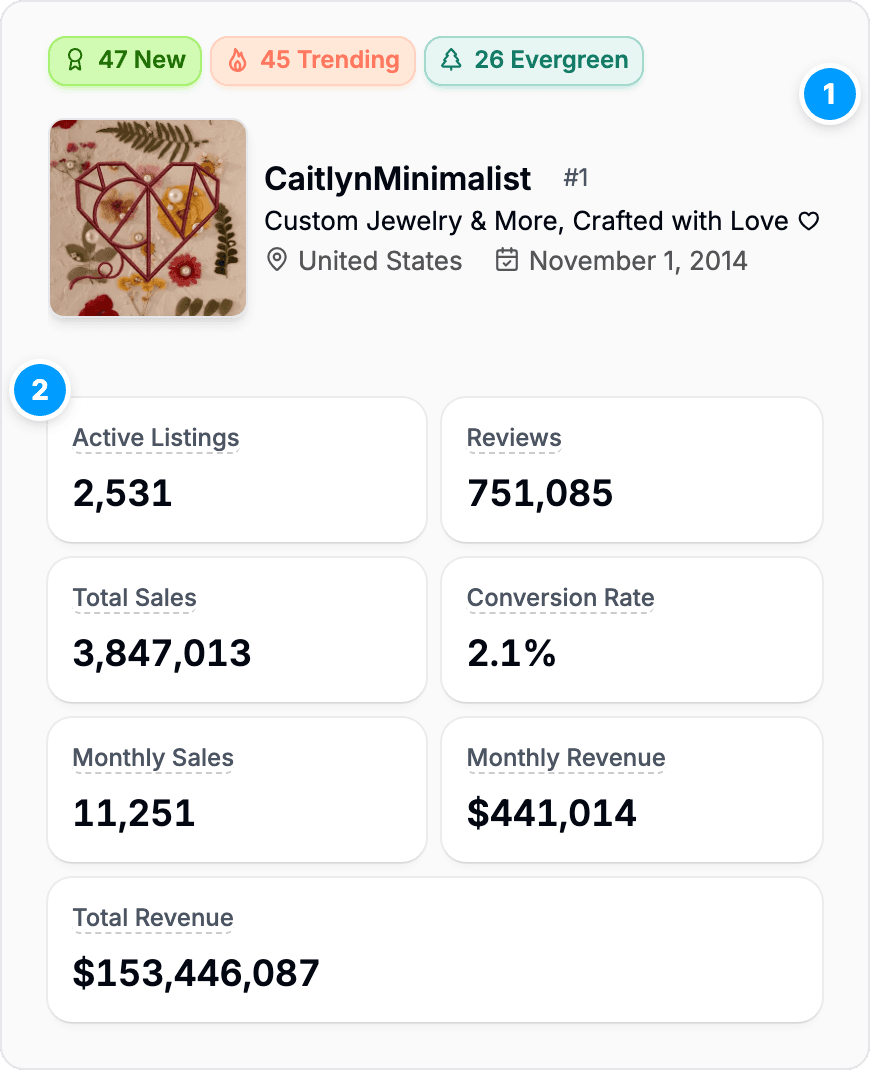
Review the shop overview — The left panel shows (1) the shop’s logo, name, ranking relative to other shops, official shop title, location, and opening date, and (2) its key numbers: active listings, reviews, total and monthly sales, conversion rate, and monthly and total revenue estimates.
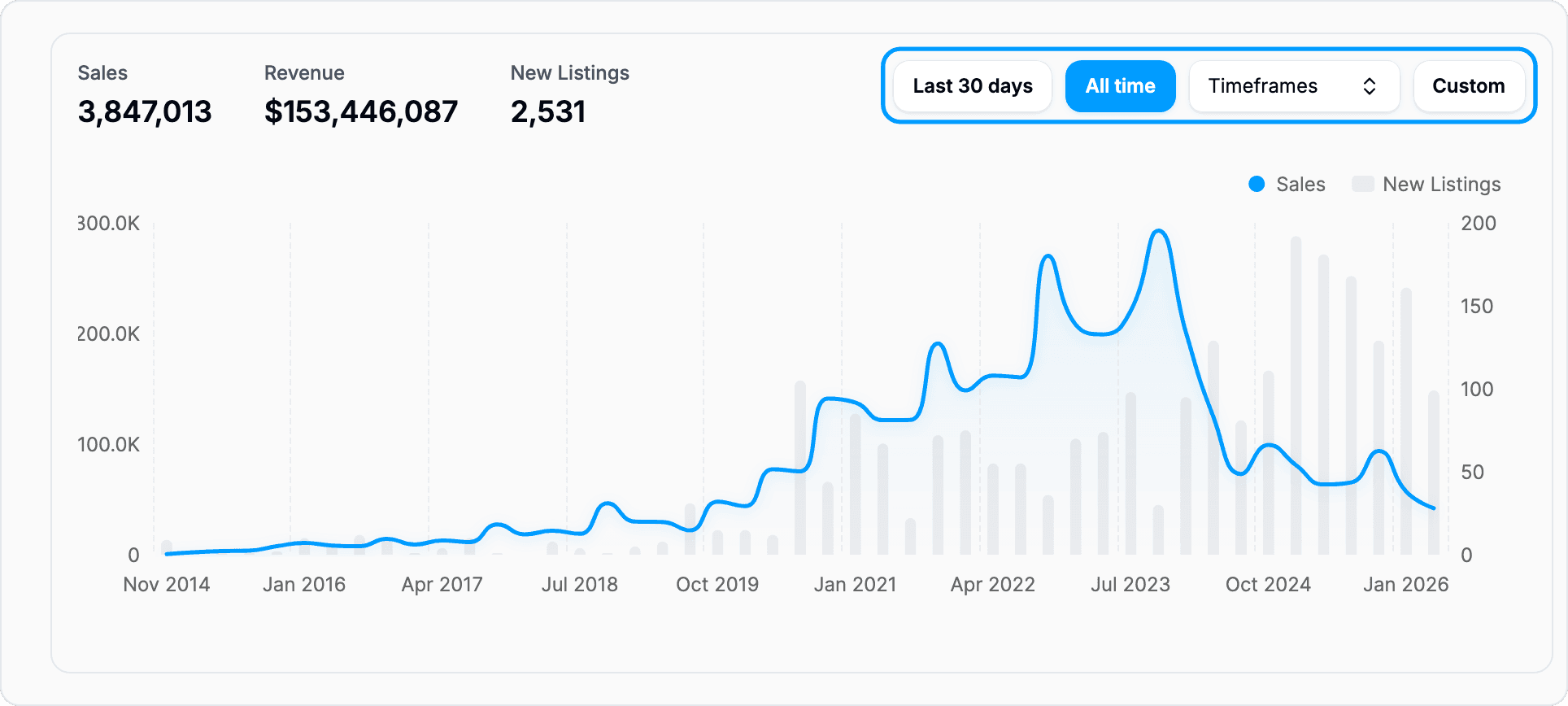
Check the sales chart — The chart shows sales and new listings over time. Toggle between “Last 30 days”, “All time”, specific timeframes, or a custom date range.
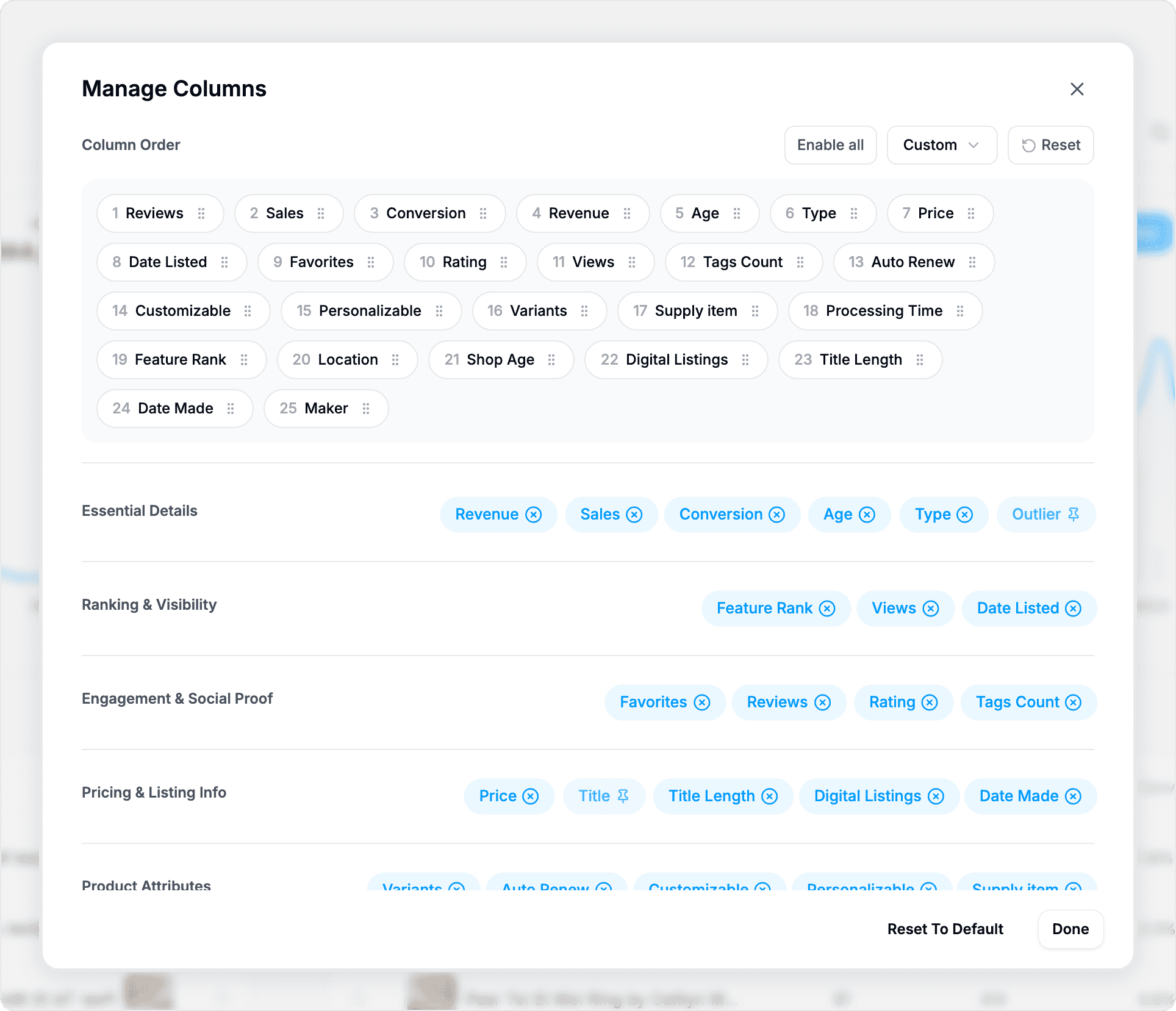
Explore the listings table — The right panel shows the shop’s active listings with columns such as title, reviews, sales, conversion and revenue. Use Edit columns to add others like price, favorites, views and tags count.
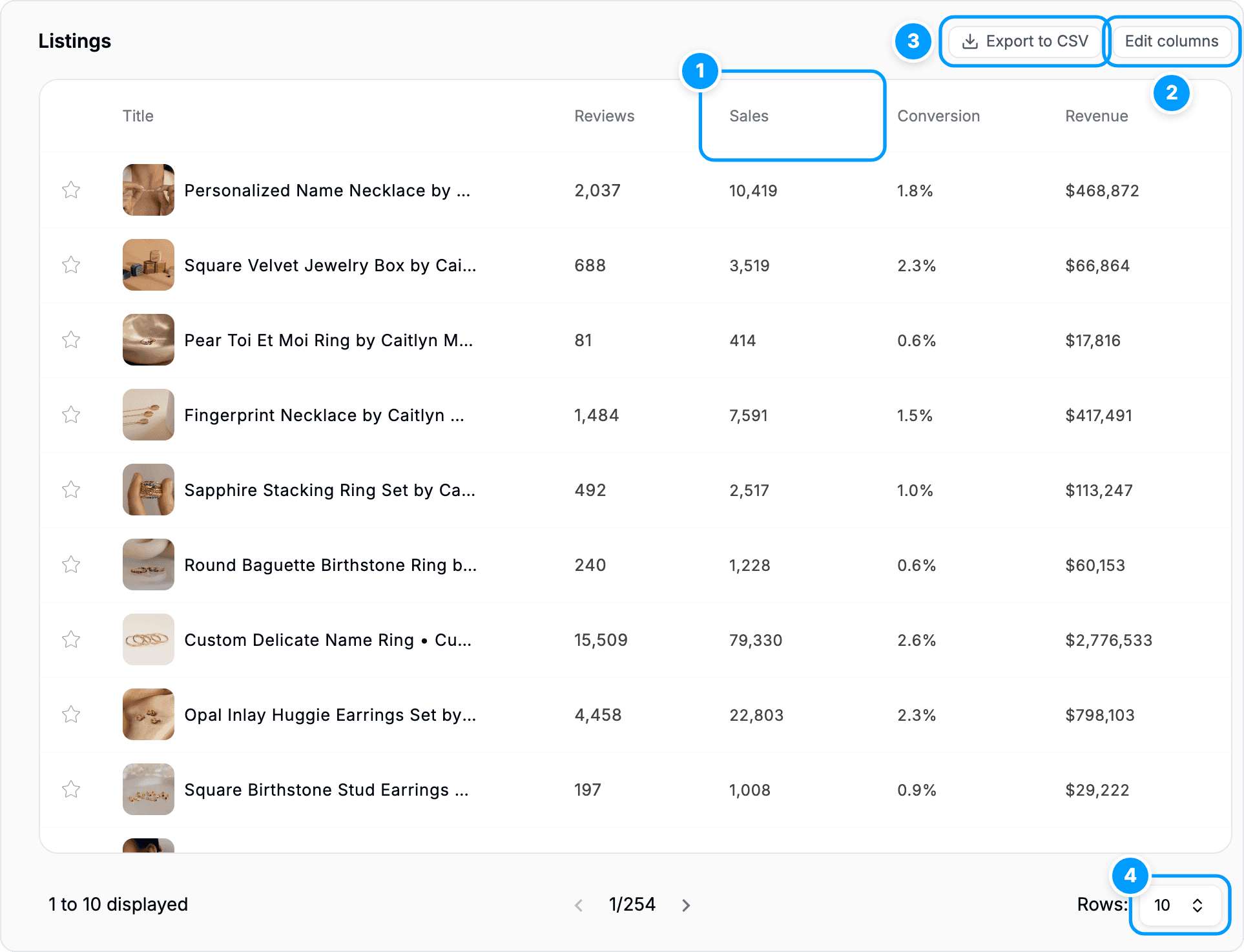
(1) Sort and reorder — Click any column header to sort. Drag column headers left or right to reorder them.
(2) Customize columns — Click “Edit columns” to show, hide, or rearrange which metrics you see.
(3) Export — Click “Export to CSV” to download the listings for deeper analysis.
(4) Navigate pagination — Results show 10 listings per page by default. Change the rows per page or use the arrows to browse more.
View individual listing details — Click any listing row to jump to the Listing Explorer for deeper analysis.
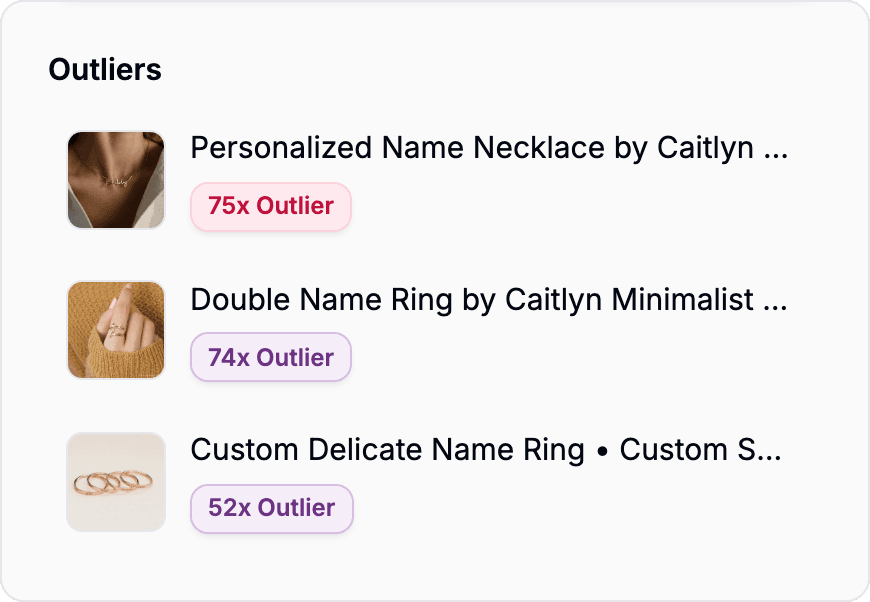
Spot outlier listings — The Outliers section flags listings performing significantly above or below average for their category.
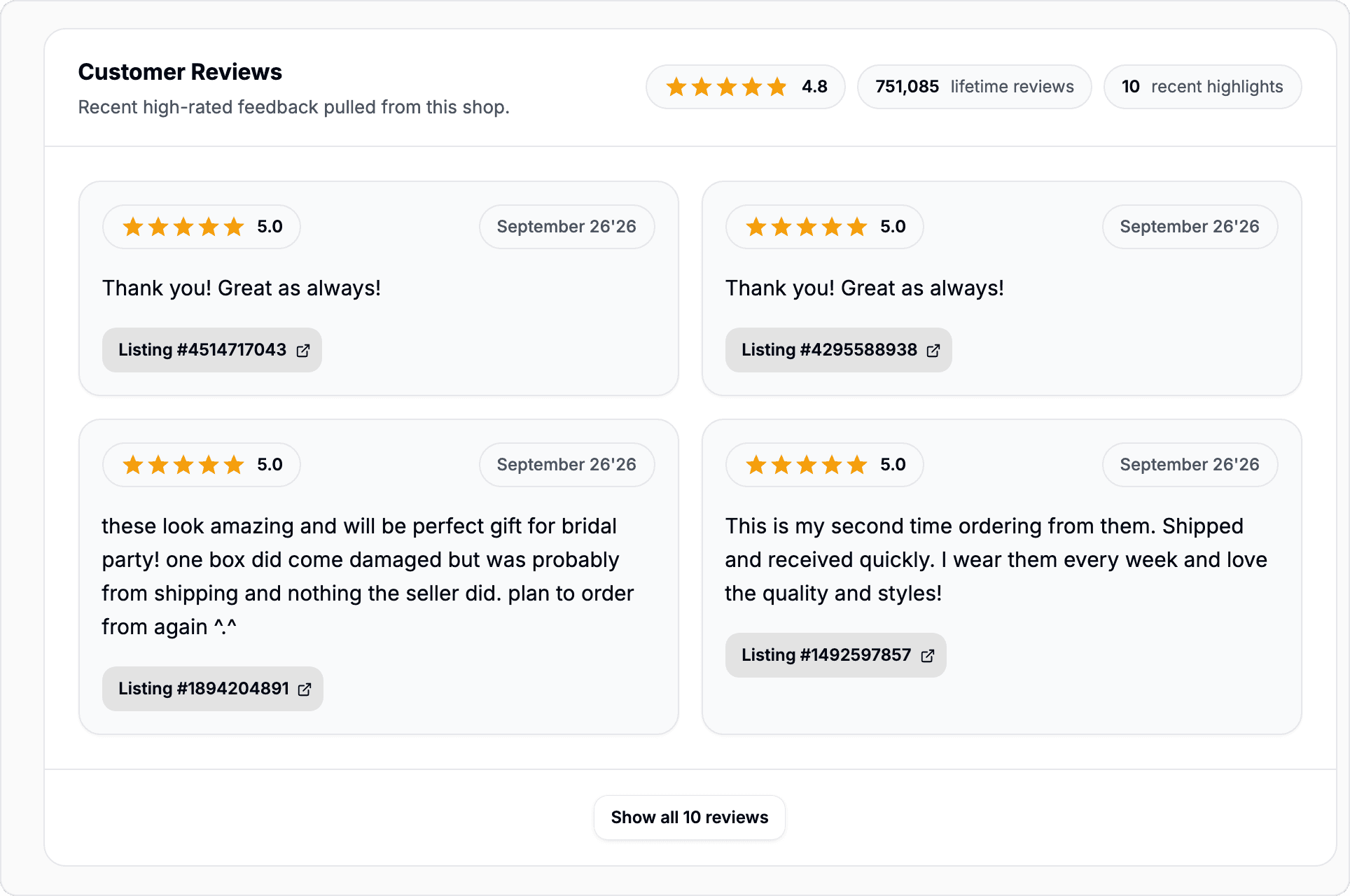
Review customer feedback — The Reviews section shows high-rated recent reviews from the shop’s customers.
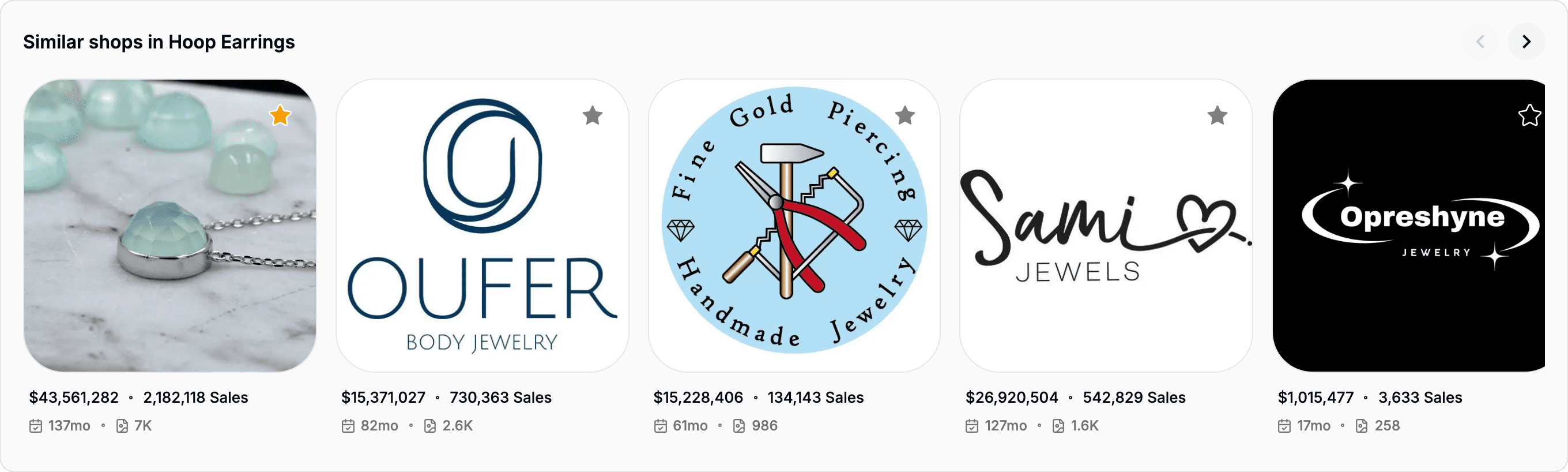
Find competing shops — Scroll to the Similar Shops carousel to see other shops that sell in the same primary and secondary product categories. Each card shows monthly sales, total sales, active listings, and shop age.
Save for later — Click the star icon next to any shop or listing to add it to your watchlist. Organize saved items into folders for easy reference.
Key concepts
Shop Ranking — Your shop’s position relative to other Etsy shops based on sales volume and activity level. A higher ranking indicates stronger sales performance within the marketplace.
Revenue Estimates — Calculated projections of shop income based on transaction data and listing prices. Estimates include both monthly and all-time figures.
Review Velocity — The rate at which a shop receives customer reviews over time. Faster review accumulation often indicates higher sales volume and customer activity.
Outlier Score — A metric that identifies listings performing significantly above or below the average for their product category. High outlier scores suggest either exceptional performance or underperformance worth investigating. See What is the Outlier Score?.
Tips & best practices
Use deep links for quick returns — Bookmark or share a search result using the
?shopName=parameter in your URL to jump directly to a specific shop without typing again.Let partial results inform early decisions — While the progress bar runs, you can already review shop basics and begin exploring listings. No need to wait for complete data to start gathering insights.
Save interesting shops as you research — Add competitive shops to your watchlist with a single click. Organize them into folders so you can compare trends over time.
Cross-reference with Listing Explorer — When a specific listing catches your eye, click it to open the Listing Explorer for detailed metrics, tag analysis, and pricing breakdown.
Remember that data refreshes every two days — Shop data is cached for 2 days before re-syncing. Searching the same shop again within that window does not count against your usage allowance.
Common questions
How current is the shop data?
Shop data is cached for 2 days to balance freshness with performance. If you search a shop you recently viewed, that search does not count against your usage limit.
Can I export this data?
Yes. Click the Export button to download all visible listings and shop metrics in a spreadsheet-ready format.
Why do some listings have a high outlier score?
Outlier scores flag listings that are performing very differently from others in the same category. A high score might indicate a viral product, a pricing advantage, or a gap in the market. A low score might signal that a listing is struggling compared to peers.
Can I compare multiple shops at once?
The Similar Shops carousel shows competing shops side by side. You can click any shop card to dive deeper, or add multiple shops to your watchlist and compare their metrics over time.
What if I find a shop by mistake or want to search again?
Simply start a new search. Popular and recent shop searches appear at the top to help you quickly find shops you’ve viewed before.
Related features
Listing Explorer — Click any listing row to analyze a specific product in detail, including pricing trends and tag performance.
Tag Extractor — Extract and analyze all tags from individual listings to understand keyword strategy.
Watchlist — Save shops and listings to folders and track them over time for competitive intelligence.
Find any public Etsy shop and see its sales performance, revenue estimates, active listings, reviews, and similar competing shops — all in one view.
What you can do with Shop Analyzer
Search for shops by name or URL with autocomplete suggestions
View shop performance metrics including monthly and total sales, revenue estimates, and rankings
Browse all active listings with sortable columns for price, sales, reviews, and more
Identify listings that are performing exceptionally well or underperforming relative to their category
See high-rated recent reviews from customers
Discover similar shops operating in the same product categories
Save shops and listings to your personal watchlist for future reference
Export shop data and listings to CSV for deeper analysis
How to use Shop Analyzer
Navigate to Shop Analyzer — Open the Shop Analyzer tool from the main menu.
Search for a shop — Enter a shop name or Etsy URL in the search box. After you pause typing (one second of no new characters), autocomplete suggestions appear to help you find the exact shop.
Wait for results to load — A progress bar appears while your shop data syncs. Partial results stream in as they become available, so you can start viewing information before everything completes.
Review the shop overview — The left panel shows (1) the shop’s logo, name, ranking relative to other shops, official shop title, location, and opening date, and (2) its key numbers: active listings, reviews, total and monthly sales, conversion rate, and monthly and total revenue estimates.
Check the sales chart — The chart shows sales and new listings over time. Toggle between “Last 30 days”, “All time”, specific timeframes, or a custom date range.
Explore the listings table — The right panel shows the shop’s active listings with columns such as title, reviews, sales, conversion and revenue. Use Edit columns to add others like price, favorites, views and tags count.
(1) Sort and reorder — Click any column header to sort. Drag column headers left or right to reorder them.
(2) Customize columns — Click “Edit columns” to show, hide, or rearrange which metrics you see.
(3) Export — Click “Export to CSV” to download the listings for deeper analysis.
(4) Navigate pagination — Results show 10 listings per page by default. Change the rows per page or use the arrows to browse more.
View individual listing details — Click any listing row to jump to the Listing Explorer for deeper analysis.
Spot outlier listings — The Outliers section flags listings performing significantly above or below average for their category.
Review customer feedback — The Reviews section shows high-rated recent reviews from the shop’s customers.
Find competing shops — Scroll to the Similar Shops carousel to see other shops that sell in the same primary and secondary product categories. Each card shows monthly sales, total sales, active listings, and shop age.
Save for later — Click the star icon next to any shop or listing to add it to your watchlist. Organize saved items into folders for easy reference.
Key concepts
Shop Ranking — Your shop’s position relative to other Etsy shops based on sales volume and activity level. A higher ranking indicates stronger sales performance within the marketplace.
Revenue Estimates — Calculated projections of shop income based on transaction data and listing prices. Estimates include both monthly and all-time figures.
Review Velocity — The rate at which a shop receives customer reviews over time. Faster review accumulation often indicates higher sales volume and customer activity.
Outlier Score — A metric that identifies listings performing significantly above or below the average for their product category. High outlier scores suggest either exceptional performance or underperformance worth investigating. See What is the Outlier Score?.
Tips & best practices
Use deep links for quick returns — Bookmark or share a search result using the
?shopName=parameter in your URL to jump directly to a specific shop without typing again.Let partial results inform early decisions — While the progress bar runs, you can already review shop basics and begin exploring listings. No need to wait for complete data to start gathering insights.
Save interesting shops as you research — Add competitive shops to your watchlist with a single click. Organize them into folders so you can compare trends over time.
Cross-reference with Listing Explorer — When a specific listing catches your eye, click it to open the Listing Explorer for detailed metrics, tag analysis, and pricing breakdown.
Remember that data refreshes every two days — Shop data is cached for 2 days before re-syncing. Searching the same shop again within that window does not count against your usage allowance.
Common questions
How current is the shop data?
Shop data is cached for 2 days to balance freshness with performance. If you search a shop you recently viewed, that search does not count against your usage limit.
Can I export this data?
Yes. Click the Export button to download all visible listings and shop metrics in a spreadsheet-ready format.
Why do some listings have a high outlier score?
Outlier scores flag listings that are performing very differently from others in the same category. A high score might indicate a viral product, a pricing advantage, or a gap in the market. A low score might signal that a listing is struggling compared to peers.
Can I compare multiple shops at once?
The Similar Shops carousel shows competing shops side by side. You can click any shop card to dive deeper, or add multiple shops to your watchlist and compare their metrics over time.
What if I find a shop by mistake or want to search again?
Simply start a new search. Popular and recent shop searches appear at the top to help you quickly find shops you’ve viewed before.
Related features
Listing Explorer — Click any listing row to analyze a specific product in detail, including pricing trends and tag performance.
Tag Extractor — Extract and analyze all tags from individual listings to understand keyword strategy.
Watchlist — Save shops and listings to folders and track them over time for competitive intelligence.
Still need help?
Can’t find what you’re looking for? Our team is happy to help.
Summarize