Mockup Generator
Applying Mockups to Listings
Use your generated mockups as listing images — generate into Listing Images or Files, then apply them to listings from the Bulk Editor, single listing editor, or Bulk Create.
Updated
Once you've generated mockups, the next step is getting them onto your listings. You can generate mockups directly into Listing Images for immediate use, or generate into Files and recategorize them later. Either way, applying them to a listing takes just a few clicks.
Where mockups are generated
When generating mockups, you choose where they're saved:
Listing Images — Ready to use immediately. This is the fastest path to getting mockups onto your listings.
Files — Saved to your general file library. Useful if you want to review, organize, or edit mockups before using them as listing photos.
If you generated into Files and want to use them as listing images, select the mockups in your Asset Library and recategorize them into Listing Images before applying.
How to apply mockups to a listing
You can apply mockups from any listing editor — the Bulk Editor, single listing editor, or Bulk Create. The process is the same in all three.
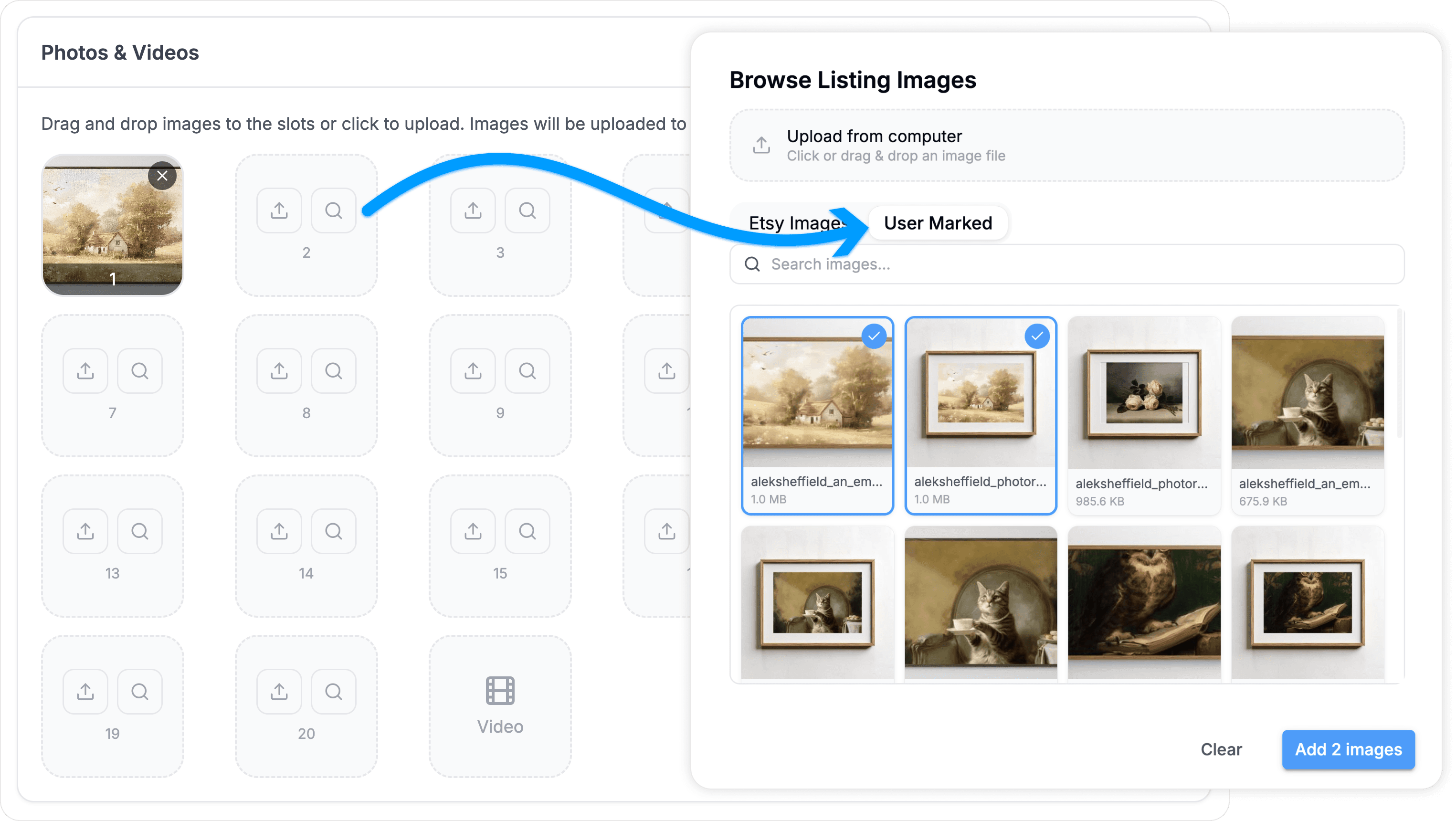
Open your listing in the Bulk Editor, single listing editor, or Bulk Create
In the images section, click the search glass icon to open the image picker
Toggle over to User Marked — this shows all of your Listing Images, including generated mockups
Select the images you want to use
Click Apply to add them to the listing
Tips
Smaller images (lower than 3MB) will still produce great results and generate much quicker.
Generate directly into Listing Images when you know the mockups are ready to use — it saves the extra recategorization step
Generate into Files when you want to review quality, edit in the Canvas Editor, or organize into collections before committing them as listing photos
Use Bulk Create with your mockups to spin up new listings quickly — generate mockups for a product line, then apply them as you create each listing
Remember that Etsy allows up to 10 images per listing, so plan your mockup templates accordingly
Still need help?
Can’t find what you’re looking for? Our team is happy to help.
Summarize